You are currently browsing the The SEM Blog blog archives for the year 2012.

Want More? Sign Up for our Schipul SEM Team Email Newsletter:


Archives

  • 2012
  • 2011
  • 2010
  • 2009
  • 2008
  • 2007

Archive for 2012

Schedule Your Reporting in the New Google Analytics

posted by Jennie Lane
Thursday, May 17, 2012

They say change is a good thing, but it isn’t always easy. SEOs everywhere are experiencing the big change taking place with Google phasing out the old version of Google Analytics. It seems like Google is itching for the “old version” of Analytics to go away. The only way to even get to the old version currently is by clicking the link in the footer. There’s no telling when that link will go away, so make the switch ASAP if you haven’t already.Google Analytics Reporting Switch

Google recently sent out emails alerting everyone that the old version of Analytics reporting will end in June 2012. We see the good in the new Analytics and there is a lot more data to play with. However, this is a headache because all of the automatic reports you set up in the old Analytics will need to be made again in the new Analytics. This is good news and bad news. It’s good because it gives you the opportunity to revisit your dashboard and customize it. Unfortunately for agencies this is bad news because all of the hundreds of reports we have automated will be gone! We encourage our clients to log into their Analytics and get familiar with the data. This is the perfect time for them to customize their dashboards to display the data they’re most interested in seeing.
If you need a little help getting started we’ve simplified it for you — 3 Quick Steps to Set Up Email Reports in the New Google Analytics

Guest Blogger:  Laura Rodnitzky is the Director of Production for PPC Associates, a search engine marketing agency with offices in San Mateo and Chicago.

Writing PPC ads can be fun – using your brain to shoehorn great messaging into a limited number of characters is like doing puzzles. The parts of the copy-creation process that get really tedious are the repetitive acts – checking character count obsessively, combing the text to make sure your capitalization preferences are followed, appending the same word over and over.

There’s good news, though – Excel has some handy features you can use to streamline those mind-numbing steps. Here are my four favorite ad copy time-savers (they work for keywords, too):

1.       Length Formula

If you’re writing or customizing a significant number of text ads, create an extra column to the right of any ad text component to automatically measure length (i.e. the number of characters, including spaces, in the cell). Type in =LEN(cell), where cell is simply the cell whose characters you want to count. This feature makes it easy to see if you’re hitting the character count limits for Headline, Description Line 1, Description Line 2, or Display URL in AdWords. You can easily copy the formula down multiple rows and use conditional formatting (see #2) to quickly flag any cells over the limit.

Length Formula Example - Excel

2.       Conditional Formatting

It would be impossible to go into all the conditional formatting options in such a short blog post, so I’ll stick to the two main uses for ad text and keyword builds. First off, we can use the “Greater Than…” option to flag any ad text lines that exceed the specified limits. Go to “Conditional Formatting” > “Highlight Cells Rules” >  “Greater Than….” and enter your max limit in the dialog box that appears.

Conditional Formatting Example - Excel

The screenshot below shows that the last two headlines exceed the 25-character max. As I modify the text of the headlines, both the length count and the conditional formatting will automatically update.

Length Count and Conditional Formatting Example

You can also use the “Less Than…” option if you want to identify ad text components that are significantly below the character limit. For example, you may want to flag any Description Line with fewer than 20 characters – perhaps there is additional, relevant text that can be added to use up more of the real estate and enhance the message you are trying to deliver.

Another useful conditional formatting tool is “Duplicate Values…” which is also found in the “Highlight Cells Rules” section. You can use the “Duplicate Values…” option to flag repeated keywords in keyword builds, duplicate ad text, etc. In the screenshot below, the two headlines flagged in green are duplicates.

Duplicate Values Example

3.       Capitalization Functions

Another useful feature for ad text is the “proper” function, which capitalizes the first letter of each word in a cell. Type in =proper(cell) to use this function.

Capitalization Functions Example

There are a couple things to consider when using “proper.” First of all, the output appears in the cell where you place the formula, and the output itself is a formula. In order to manipulate it, you’ll need to copy and paste as special (values). You may want to paste it back into the cell with the original text, so you maintain the headers (“Description Line 1” in the example above). The other thing to keep in mind is that acronyms (such as PPC) will be modified so that only the first letter is capitalized. You’ll need to go back and fix any acronyms – fortunately a simple find/replace can do the trick.

Proper Function Example

There are additional capitalization functions that may be useful, depending on your preferences for keywords, ad group names, and ad text. The “lower” function makes every word lowercase, and the “upper” function makes all letters capitalized.

4.       Concatenate

The last feature I’ll hit on today is “concatenate,” which allows you to join the contents of two or more cells and/or cells plus text. For ads, “concatenate” is a great tool for appending tracking parameters to destination URLs, or for adding text to existing ads, among other things. For example, if you want to run an ad test with the word “Free” added to the beginning of every headline, the concatenate function would let you do this easily in Excel.

Concatenate Feature for Excel

Note that, like the “proper” and “lower” functions, the output is placed in another cell and needs to be copied and pasted as values in order to manipulate the text.

Concatenate Example - Excel

Another great use for “concatenate” is to append the plus sign before broad match modifier keywords – however, it will only append the sign to the first token in a keyword. For the remaining tokens, simply use find/replace to find spaces and replace with space and plus sign.

There are several more functions and tools in Excel that will make your life as a search engine marketer much easier, but these are some of my favorites for ad text creation (and they can be handy for keyword builds, too).

Do you have any to add? Leave a comment!

Quantitative Effects of the Penguin Police
posted by dtankersley
Thursday, May 10, 2012

Penguin sparked fear in many SEOers, with blog posts like Anatomy of a Disaster, Penguins, Pandas and Panic at the Zoo, and innumerable accounts of sites losing over half of their traffic. Penguin is Google’s latest search algorithm update, and is supposed to level the playing field – increasing ranking for websites that have great content but aren’t well-optimized for the search engines, and penalize websites with less great content that are over-optimized for the machines.

Facts dispel fear (or at worst justify it and indicate a path towards greener pastures), so I wanted to distill what we know to date with hard quantitative data. Surprisingly the answer is not-a-whole-lot, and what we do have comes from just a couple sources.

penguin effect bigger than panda 3.5 updateA chart produced by SEOmoz shows that “the impact of Penguin was immediate and substantial”, with over 3% of Top Ten Rankings in their analysis changing (versus the ~2.7% change caused by the Panda update on April 19th).

Untold quantities of keyboards have rendered the phrases key-word-stuffing and over-optimized-anchor-text in hypotheses about what Penguin is doing. However, MicrositeMasters had unique access to a fabulously large data set and produced the only set of charts I could find showing detailed effects of Penguin.


Findings & Action Items from MicrositeMasters

1. Keyword-Stuffing in Anchor Text: Only sites with over 60% of anchor texts containing “money” keywords matching incoming links were negatively affected by Penguin.

A money keyword generates a lot of search traffic. Guzman defines it as a high-volume search term or phrase with a Google rank of roughly 5-15. In other words, the Penguin is looking for you if over half of your traffic is driven by searches using high-volume keywords that exactly match your anchor texts.

Action Item: Unless your incoming link anchor texts were totally dominated by high-volume search keywords, this component of the Penguin Algorithm is not hurting your site.

Penguin penalizes sites with lots of inbound links matching high-search-volume keywords

2. URLs in Anchor Text: Penguin is going to hit you for stuffing URLs in your anchor texts, but not near as much as money-keyword stuffing (far right in chart below).

Action Item: Reduce your URL-stuffing, but take care of the keyword-stuffing First!

penguin penalizes keyword more than URL anchor text stuffing

3. Relevant (Niche) Inbound Links: Having links from websites outside of your niche is okay, as long as you have some from relevant websites, too.

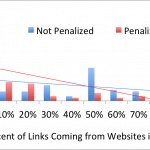
penguin penalizes more for having no relevant inbound links than lots of non-niche inbound linksI made this chart by eye-balling the numbers in a pair of charts from the MicrositeMasters study. The chart shows two things:

i) It doesn’t matter if you have a high or low percent of inbound links from websites with content that is relevant to yours, as long as you have SOME quality, niche inbound links: websites with low percentage (10%) of same-niche inbound links were penalized at the same rate as sites with high percentage (60-100%) of relevant inbound links.

ii) It matters a LOT if you have NO relevant inbound links – the red bars show that about half of websites with 0% of relevant inbound links were penalized. Once you have even 10% of your links coming from quality, relevant sites though, Penguin isn’t penalizing you for having non-niche links too.

Action Item: Make sure you have some inbound links from quality, relevant websites.

That’s not easy – and it’s part of the point of Penguin: good content creation and targeted community development around your site is harder than typing a keyword into 20 anchor texts. Countless blog posts offer advice on building a quality community (inbound links from websites with good content related to your site). Here are a few tidbits from Brownrigg’s insights on generating a community for your website.

i) Post quality articles relevant to your niche (that people will want to repost on their site).

ii) Compile some of your articles into an ebook.

iii) Publish your articles on sites like digg and submit them to article directories.

Post-Penguin Reality

Penguin seems to have a fairly narrow target – keyword-over-optimized text anchors and disproportionate inbound links from irrelevant websites: in other words, it has effectively removed shortcuts for generating website traffic. In general, however, and despite the apocalyptic rhetoric out there, the new Sheriff should leave the world with a lot of well-deserved winners – people creating genuinely good content and generating traffic with honest “white-hat” methods that ultimately benefit the 2,267,233,742 people searching for content on the World Wide Web.

Google Penguin Sheriff

Image from cognitiveseo.com/blog

Pinterest: Why it’s worth the investment, and how to get your ROI
posted by dtankersley
Thursday, April 26, 2012

If you’re the person in charge of social media at your company, Pinterest may cause you to groan and look for excuses to opt out of maintaining yet another communication channel. Unfortunately Pinterest is increasingly looking like a medium marketers shouldn’t ignore; fortunately, it also looks like a medium that delivers significant ROI, and might not require the level of investment required by Facebook or a blog.

A Medium Marketers Can’t Ignore: In 3 Charts

Pinterest in 3 Charts

1) Pinterest is a $7.7 Billion Company, and “appeals to college-educated females between the ages of 25 to 44. A sweet demographic known for its spending decisions and habits.”


2) From Q2 2011 to now, Pinterest has grown from representing 1.2% of social media revenue for e-commerce sites to 17.4%, and it generates greater revenue per click than Facebook or Twitter.


3) Pinterest drives more referral traffic than YouTube, LinkedIn and Google+, and its share of total social media referrals is growing.


OK. So I can’t ignore it. What’s it going to cost me? 

TIME    91% of marketers report using social media, and over half of these are spending 6+ hours a week doing it.  A good blog post requires a lot of research because it contains a lot of content, and both Facebook and Twitter involve conversations with consumers that need to be monitored. Pinterest, however, is sometimes described as the next phase in social media – content is not (time consumingly) generated, but curated –  “Pinterest offers a new level of fun and interaction for our customers as they work with us to create and curate content.” Because you are using content you already have, content created by others, and your followers are adding to and refining your content, Pinterest lessens the burden of time investment required by other social media platforms.

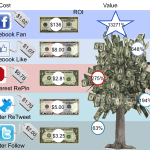
MONEY    The chart below is one I created by compiling statistics from several sources, and averaging over the ranges given by various sources. For example, one company is selling Repins for $0.75, one blogger devised an algorithm to calculate the value of a repin, and Twitter and Facebook statistics were found elsewhere. Any of these stats are highly contested, industry-specific, and involve huge ranges, but the take home is that Pinterest is relatively cheap and appears to generate a healthy return on the investment.

Social Media ROI

So how do I do it?

It’s profitable and efficient, so how can you optimize your Pinterest board to increase brand/ product awareness and traffic to your site? Neocloudmarketing reiterates the standard adage for all content creation: show your consumer the “whole package” – how your product is used, the lifestyle and how it intersects with other brands and products on the market – ie, give content that goes beyond your product and is useful to your consumers. Social Media Examiner recommends researching how your followers are interacting with your board – which pins are they re-pinning, what information can you get about your followers’ interests by looking at what they pin on their own boards? There are also resources for creating the images that will entice users.

The great thing about Pinterest is that you don’t need several paragraphs – just a picture.

Pinterest A Picture is Worth 1000 Words